Showing posts with label Windows 10 Tutorials. Show all posts

How to Install and Apply Third Party Themes in Windows 10 November Update (10586)


1. Download this file Theme Patcher
2. Install UltraUXThemePatcher_3.0.4
3. Install "Add_Take_Ownership_to_context_menu.reg" double-click it Press Yes
4. Open C:\Windows\System32 search for "Themeui.dll"

Now mouse right on the file "themeui.dll" select Open file location
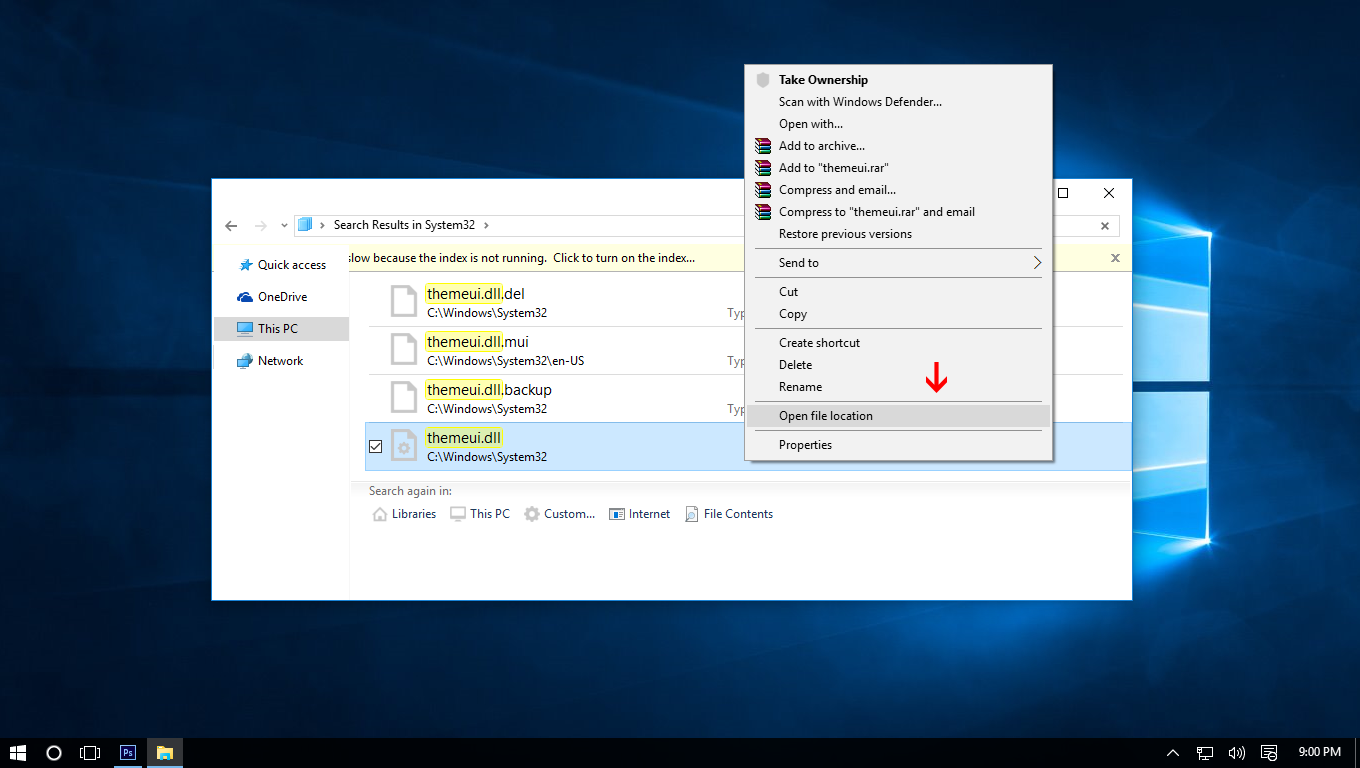

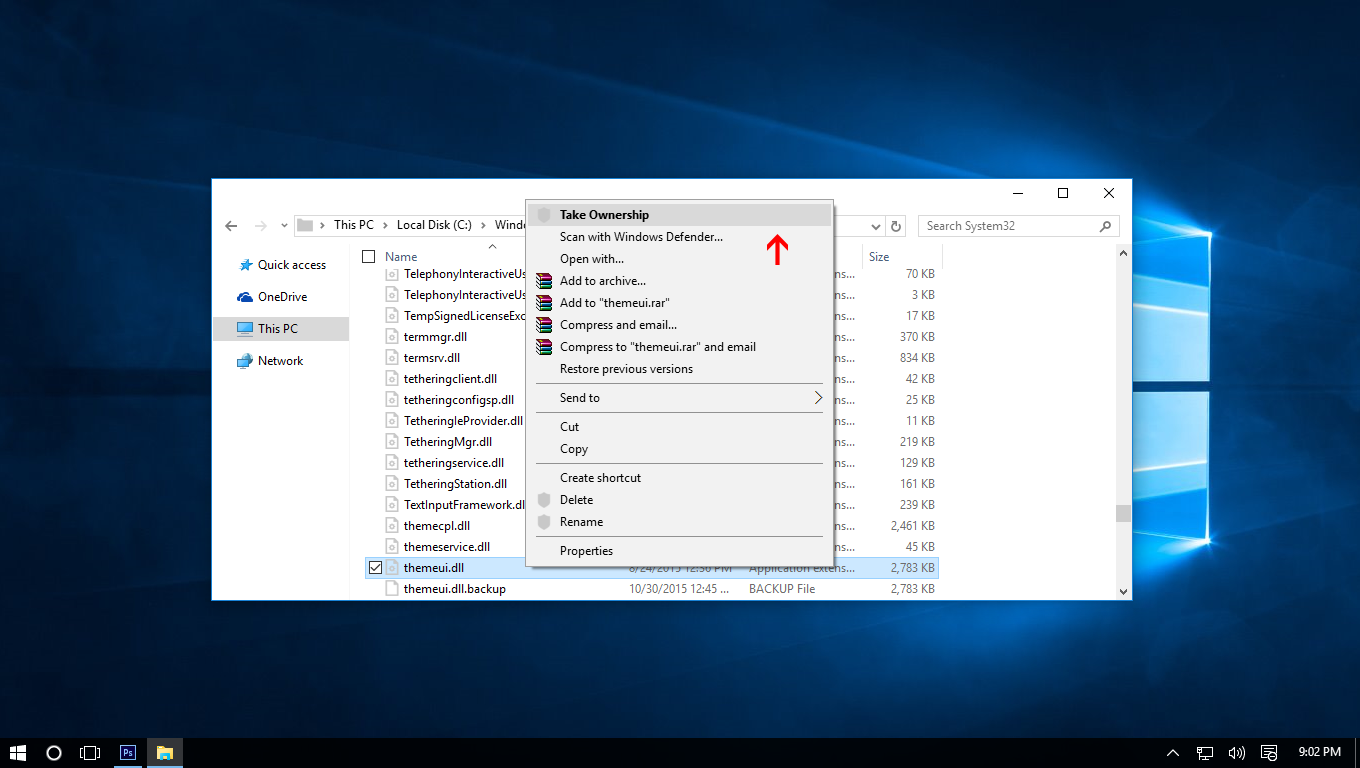
Now mouse right on the file "themeui.dll" select Take ownership

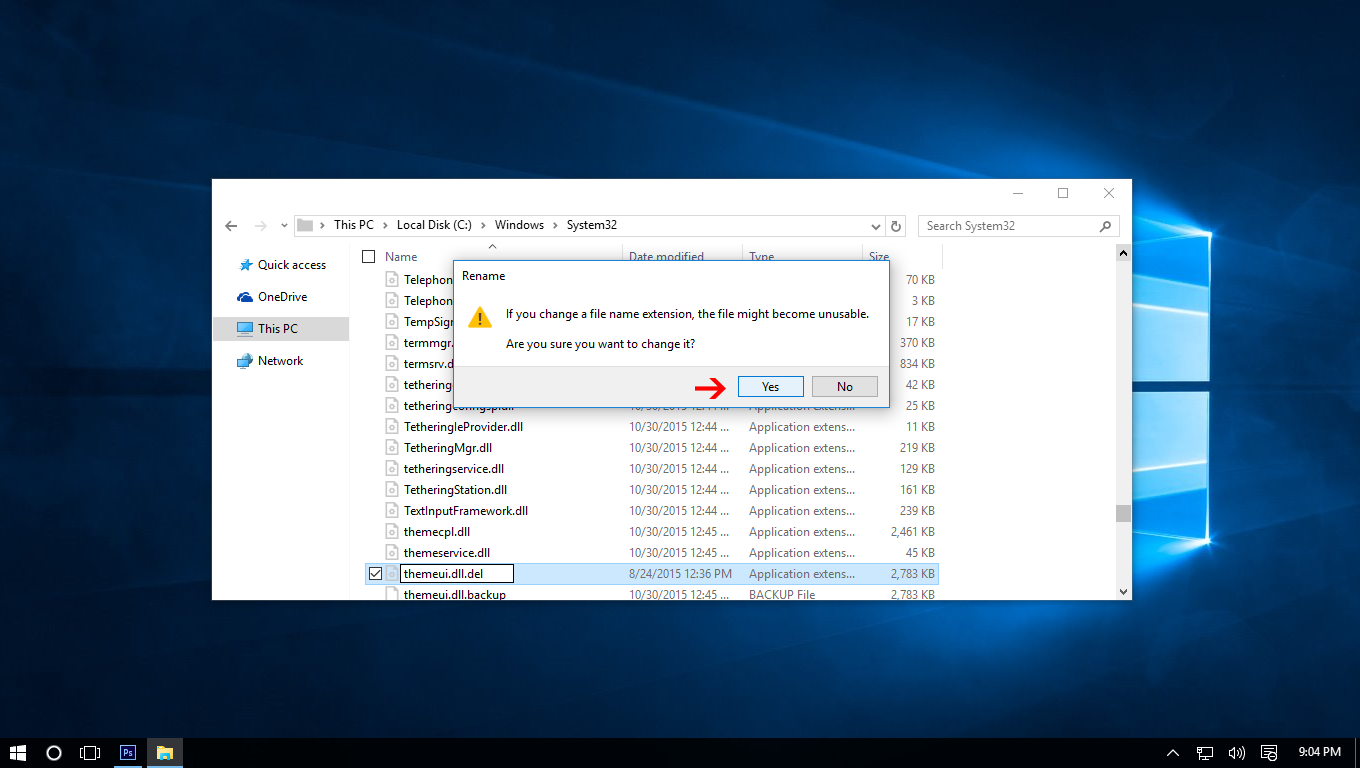
Rename "themeui.dll" to "themeui.dll.del" A dialog appears choose "Yes"

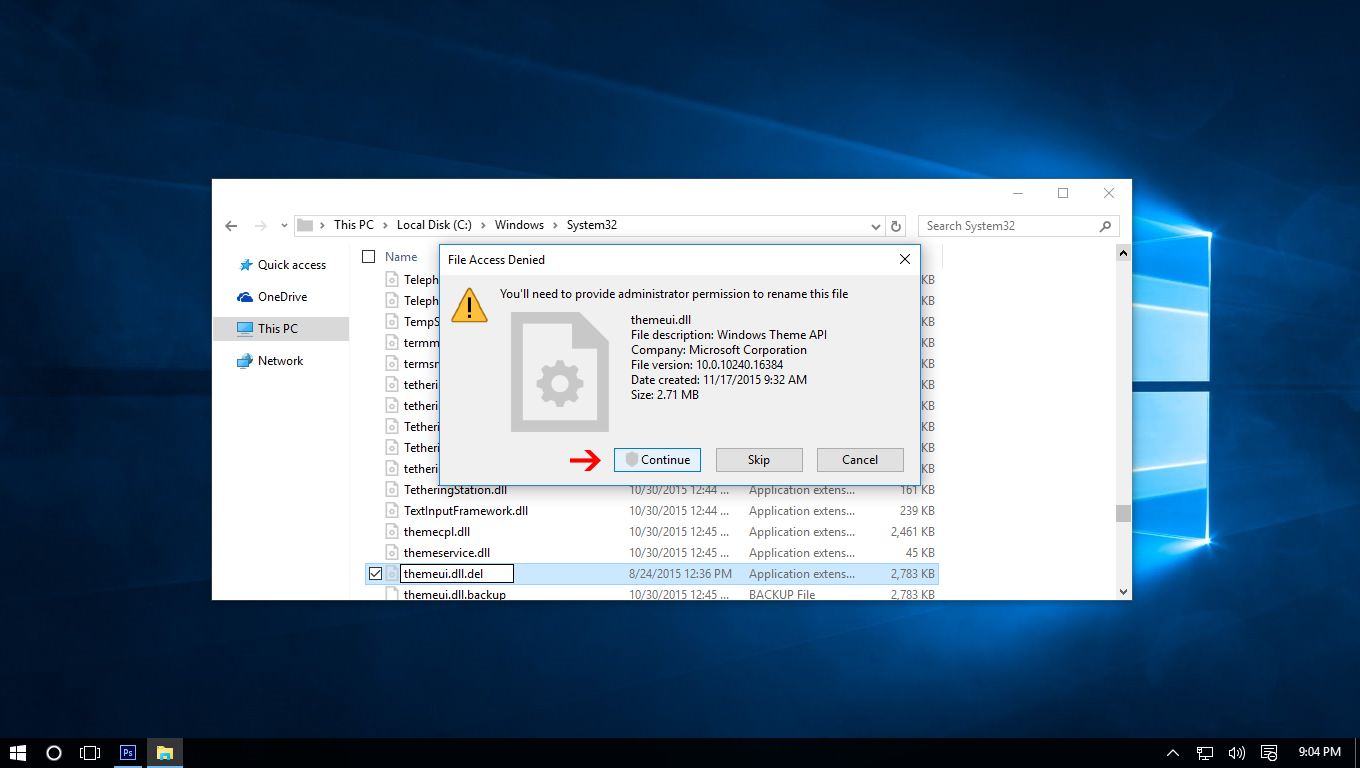
A dialog box appears again choose "Continue"

Now copy new file "themeui.dll" (found inside file Theme Patcher which you downloaded) to System32.

Note:
+ if you use windows 32 bit - you copy file in " File Patch x86 " to System32
+ if you use windows 64 bit - you copy file in " File Patch x64 " to System32

5. Do the same as above for 2 file uxinit.dll, uxtheme.dll then restart and enjoy.

Remove Desktop Watermark from Windows 10 Build 10565

Since the launch of Windows 10, you might have decided to rekindle your interest in the preview builds that are made available to Windows Insiders. Just a few days ago, Microsoft released Build 10565 and many people rushed to install it to see what was new.

But what’s that? An ugly watermark in the lower right of the desktop. If you're upset by the appearance of the "Windows 10 Pro Technical Preview. Evaluation Copy. Build 10565" text that appeared after the upgrade, here's what you need to do to get rid of it.

How To Enable The Dark Theme In Windows 10

Windows 10 comes with a dark theme that you can enable if you’re willing to make a small change in the Registry. It’s been rumoured that the dark theme is only available on the Pro and Enterprise version and not the Home version but we’ve run tests and been able to get it going on Windows Home edition. Here’s how you can switch to the dark theme in Windows 10.

How To Remove Candy Crush From Windows 10

Candy Crush seems to be a bane that has plagued Facebook for a long long time. Fortunately, for those that aren’t fond of breaking virtual candy pieces or having an oddly deep creepy voice encourage them with the word ‘Sweet’, you can turn these notification off. You’d think that was the end of it but Candy crush doesn’t go away that easily and the latest space it’s invaded is your desktop, your Windows 10 desktop to be precise. If you’ve upgraded to the newest versions of Windows you know that Candy Crush is a default pre-installed app that comes with Windows 10 and the uninstall option isn’t available. Here’s how you can rid your system of it.

How To Enable Cortana and Turn On "Hey Cortana" Feature In Windows 10

Cortana is easily going to be one of our most extensively covered features of Windows 10. Cortana isn’t enabled by default so if you never set it up, you essentially have just the normal Search feature that you can type queries into and search online or on your device. The disadvantage of not turning Cortana on is that you can’t use the Notebook, Places, and Reminder features. Here’s the super simple way of turning Cortana and the ‘Hey Cortana’ feature on.

How To Disable The Lock Screen In Windows 10

The Lock Screen in Windows 10 is a nice feature carried over from Windows 8. It’s nice to look at and is supposed to house notifications from apps that you allow to it. The only problem is that for a lot of users, app information simply isn’t showing up on the lock screen (users are desperately seeking a solution while Microsoft remains mute on the problem). With no app information available on the Lock screen, it’s pretty much just an extra UI layer which will give you the time and date as you walk by. You can set any image of your choice as the lock screen image but as far as utility goes, it’s not doing much. If you’d rather not have it, there’s a simple trick to disabling it.

How To Enable or Disable The Shadow In Windows 10

Shadow effects in operating systems exist purely for aesthetics reasons; if you do not like what you see on your screen you will not enjoy using it. The effect while minor and sometimes hard to see lends some utility as well; it makes an app window appear to float above the rest of the interface. The effect might just make the operating system look cool or it might help you tell one window apart from the other. Regardless, shadows have been used in both Windows and OS X for a while now. If you’re not fond of the shadow in OS X, a Terminal command is required to disable it. In Windows 10, you need only uncheck one option in the Control Panel.

Turn On Or Off Three Finger Tap To Launch Cortana On Windows 10

By now, you likely know that some Windows 10 laptops ship with dedicated Cortana button to help users quickly access the digital personal assistant from Microsoft. As of now, only Toshiba laptops are featuring dedicated Cortana button, but others will also likely include the dedicated button in near future once Cortana becomes available in more countries.

If you have upgraded your laptop from Windows 7 or Windows 8.1 to Windows 10 and Cortana is supported in your region/country, then you might be interested to know the ways out there to quickly access Cortana.

How to Minimize Outlook to System Tray in Windows 10 / 8.1 / 8

If you use Microsoft Outlook 2013 on Windows 8.1 or Windows 10, as your default email client, then you may have noticed that, when you minimize Outlook, it minimizes to the taskbar and continues to occupy space. This can create a problem if you have too many programs open in the taskbar. If you have it open all the time, then rather than having it sit in the taskbar, you may wish to minimize Outlook to the system tray or notification are. If this is the case, you can do it as follows.

How to Create a Shortcut to Windows Update in Windows 10

With Windows 10, Microsoft is slowly moving away from the Control Panel in favor of the new Settings app that brings a more unified and consistent place to configure classic and advanced settings. But how do you open a particular page easily from a shortcut?

Almost every Settings page has its own URI (Uniform Resource Identifier) which allows you to open any Settings page directly with a special command. While you can pin settings to the Start menu, you cannot have direct access to specific settings from the desktop. But, if you know the URI then you can easily create shortcuts on the desktop to access your favorite settings.

Remove Desktop Watermark from Windows 10 Build 10525

Since the launch of Windows 10, you might have decided to rekindle your interest in the preview builds that are made available to Windows Insiders. Just a few days ago, Microsoft released Build 10525 and many people rushed to install it to see what was new.

But what’s that? An ugly watermark in the lower right of the desktop. If you're upset by the appearance of the "Windows 10 Pro Technical Preview. Evaluation Copy. Build 10525" text that appeared after the upgrade, here's what you need to do to get rid of it.

How to enable pop-up email notifications for Windows 10's Mail app

The built-in Mail app for Windows 10 isn’t the most full-featured email client you can find, but it’s a nice, light alternative to a web client. One thing you may be wondering, however, is why you aren’t seeing pop-up Action Center notifications when you receive new emails.

Easy! You have to turn them on first. But let me warn you: once you turn on notifications you’ll get notified for every mail message you receive. Firing up your PC in the morning means a barrage of new mail notifications that come in one by freakin' one.

How To Natively Mount And Burn ISO Images In Windows 10

File Explorer in Windows 8 was revamped and the new look made its way to Windows 10. File Explorer got a new name; Windows Explorer and it bid farewell to the controls bar just below the address bar. The new UI features three basic ribbons that mimic the grouped controls you see in MS Office apps. The ribbon tabs have more or less the same controls you could access either from the control bar or the menus but some controls appear only when a specific type of file is selected. In Windows 7, regardless of what type of file you selected, you could always see a ‘Burn’ option at the top that allowed you to burn the file to a disc. With Windows 10, the option has not only migrated to a different tab, it’s also only available for certain file types. It gives the impression that you can no longer burn or mount disc files in Windows 10 when in fact, you can. Here’s how.

How to Disable Quick Access in File Explorer on Windows 10

Windows 10’s File Explorer has a new “Quick Access” view. Whenever you open a file browser window, you’ll see a list of “frequent folders” and recent files. This list of folders also replaces the old favorite folders list.

Microsoft is trying to be smart here, automatically suggesting lists of folders and files you frequently use so you can access them more quickly. But FIle Explorer can still work the old-fashioned way if you change a few options.

How To Disable Windows 10’s Inactive Window Scrolling

Do you want to enable or disable the built-in inactive window scrolling feature in Windows 10? Not sure how to use inactive window scrolling feature? In this guide, we will explain how to use inactive window scrolling feature, and how to enable or disable it in Windows 10.

How to Restore the Quick Launch Bar to Windows 10 Taskbar

Although, the process is completely same as Windows 7 or 8.1, yet, I would like to show the same trick with Windows 10 user interface. This will help you to understand all the things better.

At first, right click on empty place of your your Taskbar, expand “Toolbars” menu and select “New toolbar”.

How to Activate Windows 10 build 10240

Many users who performed a clean install of Windows 10 build 10240 cannot activate it. That is because Microsoft has disabled the online activation until the end of July 2015. If you are interested in activating Windows 10 build 10240, here are a few simple steps for you to do that without using any cracks, hacks or third party software.

How to Install and Apply Third Party Themes in Windows 10


If you love to customize the appearance of your operating system, you might be knowing that by default, Microsoft Windows doesn’t allow you to apply third party themes. Out of the box, Windows allows using only digitally signed themes released by Microsoft, so it is limited only to the default themes shipped with the operating system. In this article, we will see how to bypass this restriction and install and apply third party themes in Windows 10.
With every new Windows release, Microsoft makes some minor changes to the theme engine and/or its format. This leads to the situation where for every single release, you need a special software (a so called UXTheme patcher) which supports that new release. Windows 10 is no exception. To install and apply third party themes in Windows 10, follow the instruction below.