Showing posts with label Tutorials. Show all posts

How to Install and Apply Third Party Themes in Windows 10 November Update (10586)


1. Download this file Theme Patcher
2. Install UltraUXThemePatcher_3.0.4
3. Install "Add_Take_Ownership_to_context_menu.reg" double-click it Press Yes
4. Open C:\Windows\System32 search for "Themeui.dll"

Now mouse right on the file "themeui.dll" select Open file location
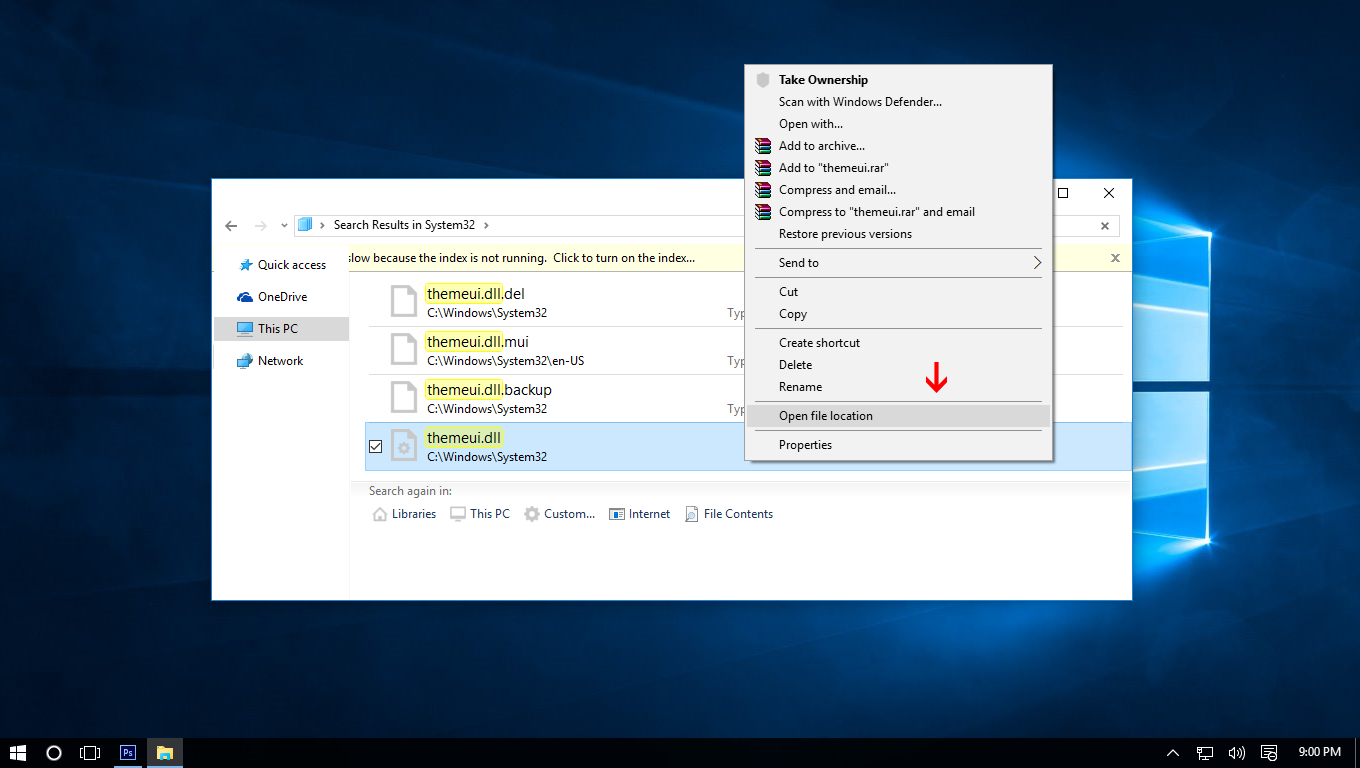

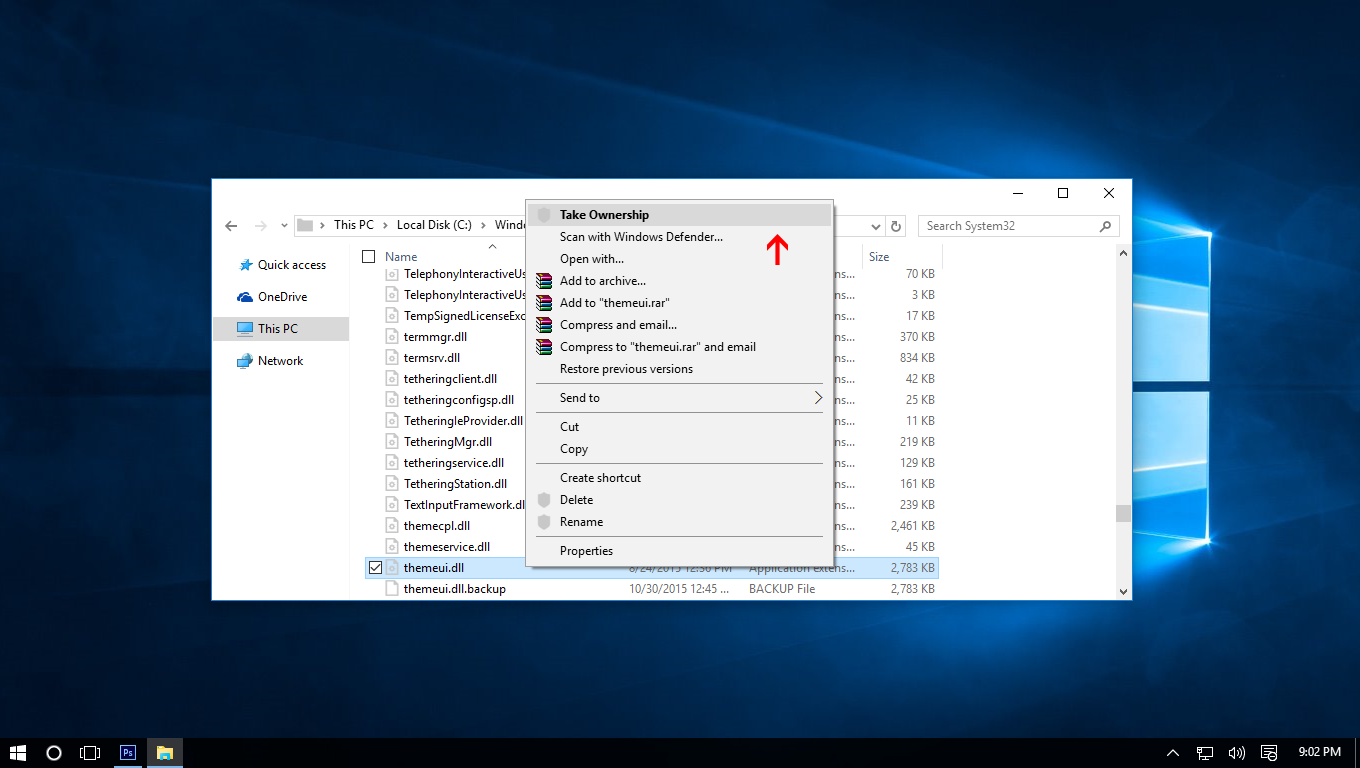
Now mouse right on the file "themeui.dll" select Take ownership

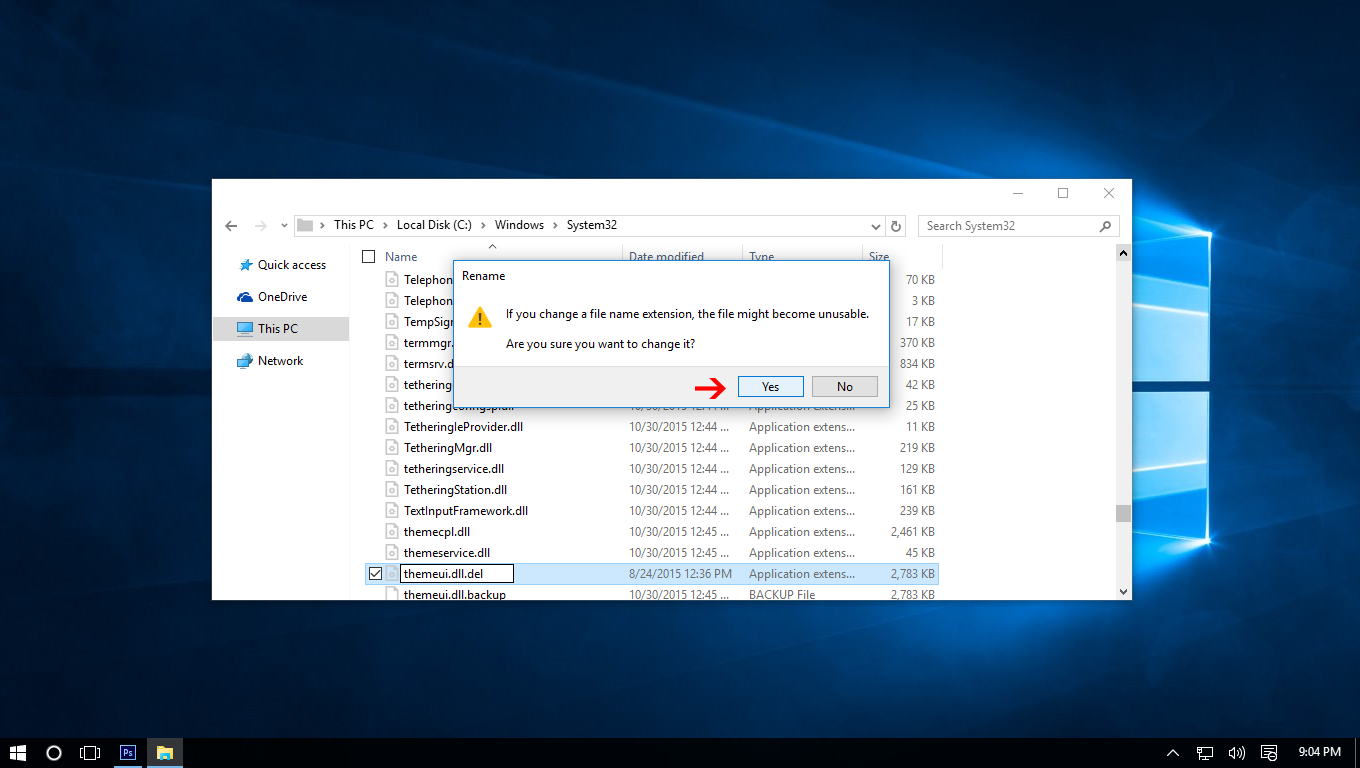
Rename "themeui.dll" to "themeui.dll.del" A dialog appears choose "Yes"

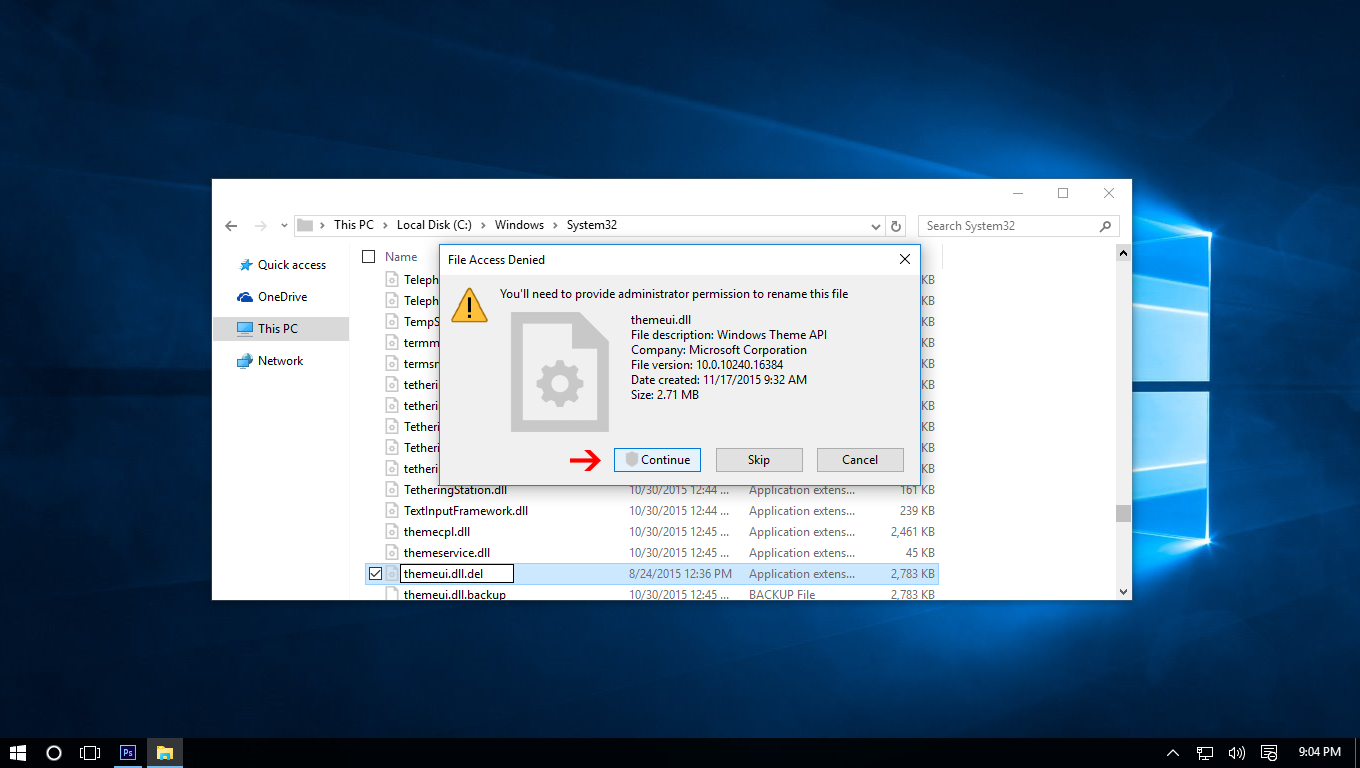
A dialog box appears again choose "Continue"

Now copy new file "themeui.dll" (found inside file Theme Patcher which you downloaded) to System32.

Note:
+ if you use windows 32 bit - you copy file in " File Patch x86 " to System32
+ if you use windows 64 bit - you copy file in " File Patch x64 " to System32

5. Do the same as above for 2 file uxinit.dll, uxtheme.dll then restart and enjoy.

How to Hide the New User Profile Name Button in Google Chrome

If you are the only one using Google Chrome on your computer, then you hardly need to be ‘reminded’ that you are the one currently logged into the browser.

For Chrome 44 and higher:

Edit your Chrome shortcut and add the parameter --disable-new-avatar-menu
Restart Chrome

For Chrome 43 and lower:
You can disable this annoying button via chrome://flags. The option you are looking for is Enable new profile management system, reachable using this direct link:

chrome://flags/#enable-new-profile-management

Disable it, then restart Google Chrome and the button will be gone.

How to Cancel Windows 10 Upgrade

Incredible Microsoft is roaring all these days with the updates of Windows 10 and many from us are showing interest to upgrade to Windows 10 from currently using Windows 7 and Windows 8.1. It takes couple of hours to upgrade to the latest operating System Windows 10.

Windows 10 is coming up with interesting features like Modern Layout, Cortana, Xbox Gaming, Music and many more grabbing customers attraction a lot. Microsoft is also offering free up gradation offer to Windows eligible users for an year from the launch time.

Users can witness an Windows Icon on Taskbar which pop-ups you to upgrade to Windows 10 whenever you begin a program.

How To Disable Windows 10’s Inactive Window Scrolling

Do you want to enable or disable the built-in inactive window scrolling feature in Windows 10? Not sure how to use inactive window scrolling feature? In this guide, we will explain how to use inactive window scrolling feature, and how to enable or disable it in Windows 10.

How To Disable The Snap View Feature In Windows 8.1

Aero Snap, Aero Peek and Aero Shake are the three nice features introduced first with Windows 7 operating system. The Snap feature, which is present in Windows 8 and Windows 8.1 as well, allows you work on two programs side-by-side by showing two windows side-by-side on the same screen.

The beauty of Snap feature is that you can quickly snap windows with the help of keyboard shortcuts. All you need to do is use the Windows logo key and the left/right arrow key to snap the active window to the left or right side of the screen. Those who prefer using a mouse over keyboard can move a window to the left or right edge of the screen to automatically resize and snap it.

How to Restore the Quick Launch Bar to Windows 10 Taskbar

Although, the process is completely same as Windows 7 or 8.1, yet, I would like to show the same trick with Windows 10 user interface. This will help you to understand all the things better.

At first, right click on empty place of your your Taskbar, expand “Toolbars” menu and select “New toolbar”.

How to Restore the Quick Launch Bar to Windows 8.1 Taskbar

Although, the process is completely same as Windows 10 or Windows 7, yet, I would like to show the same trick with Windows 8.1 user interface. This will help you to understand all the things better.

At first, right click on empty place of your your Taskbar, expand “Toolbars” menu and select “New toolbar”.

How to Restore the Quick Launch Bar to Windows 7 Taskbar

To restore the quick launch bar in windows 7 you’ll have to right-click on the open area of the Taskbar and choose Toolbars > New toolbar. Also unlock the taskbar from the menu as well.

How to Activate Windows 10 build 10240

Many users who performed a clean install of Windows 10 build 10240 cannot activate it. That is because Microsoft has disabled the online activation until the end of July 2015. If you are interested in activating Windows 10 build 10240, here are a few simple steps for you to do that without using any cracks, hacks or third party software.

How to Install and Apply Third Party Themes in Windows 10


If you love to customize the appearance of your operating system, you might be knowing that by default, Microsoft Windows doesn’t allow you to apply third party themes. Out of the box, Windows allows using only digitally signed themes released by Microsoft, so it is limited only to the default themes shipped with the operating system. In this article, we will see how to bypass this restriction and install and apply third party themes in Windows 10.
With every new Windows release, Microsoft makes some minor changes to the theme engine and/or its format. This leads to the situation where for every single release, you need a special software (a so called UXTheme patcher) which supports that new release. Windows 10 is no exception. To install and apply third party themes in Windows 10, follow the instruction below.

How to Install and Apply Third Party Themes in Windows 8.1

With every new Windows 8.1 release, Microsoft makes some minor changes to the theme engine and/or its format. This leads to the situation where for every single release, you need a special software (a so called UXTheme patcher) which supports that new release. Windows 8.1 is no exception.

To use third party themes in Windows 8.1, you should follow these simple steps.

How to Install and Apply Third Party Themes in Windows 8

Ever since Microsoft introduced the theming engine in Windows XP, they don’t allow visual styles (themes) which are not digitally signed by themselves to be used. Windows 8 is no different in that regard, so we need to patch certain system files to be able to use these themes. In this tutorial, I will show you how you can use third party themes:

How to Install and Apply Third Party Themes in Windows 7

Tired of the standard themes of Windows 7? Then it's time to install some custom third party themes.

On this page i will show you step by step how to install and use custom third party themes in Windows 7.

To do this you need to patch Windows 7 first. A patch is a piece of software designed to fix, update or improve a computer program.